Silk Mobile
Table of Contents (Homepage)
- Overview
- Setting Up
- Getting Started
- How To
- Connecting Devices And Emulators
- Preparing Applications For Testing
- Managing Applications
- Recording Tests
- Working With Test Commands
- Adding Commands To Your Scripts
- Object Commands
- Click
- ClickCoordinate
- ClickIn
- ClickOffset
- Drag
- ElementGetProperty
- ElementGetTableRowsCount
- ElementListPick
- ElementListSelect
- ElementListVisible
- ElementScrollToTableRow
- ElementSendText
- ElementSetProperty
- ElementSwipe
- ElementSwipeWhileNotFound
- GetAllValues
- GetElementCount
- GetElementCountIn
- GetTextIn
- IsElementBlank
- IsElementFound
- IsFoundIn
- LongClick
- RunNativeAPICall
- SendWhileNotFound
- VerifyElementFound
- VerifyElementNotFound
- VerifyIn
- WaitForElement
- WaitForElementToVanish
- GetCoordinateColor
- DragDrop
- Application Commands
- Device Commands
- Web (Hybrid) Specific Commands
- Utilities Commands
- Monitoring Commands
- Configuration Commands
- ExtractLanguageFiles
- SetDefaultClickDownTime
- SetDefaultTimeOut
- SetDefaultWebView
- SetDragStartDelay
- SetInKeyDelay
- SetKeyToKeyDelay
- SetLanguage
- SetLanguagePropertiesFile
- SetShowImageInReport
- SetShowPassImageInReport
- SetShowReport
- SetSpeed
- SetThrowExceptionOnFail
- SetWebAutoScroll
- StartStepsGroup
- StopStepsGroup
- TextFilter
- Miscellaneous Commands
- Controlling Element Identification Rules
- Editing Test Objects
- Executing Test Scripts
- Report Of Executed Test
- Working From Code Environment
- Continuous Integration
- Layout Verification Tests
- Use Device Vitals Monitors
- Troubleshooting
- Terminology
XPath Feature
When using the object spy to inspect the Native or Web elements of a specific page, the elements tree is a representation of an XML file, with each element representing a node with different properties in the tree module. Silk Mobile gives the user the option of using XPath language syntax in order to identify elements in the tree.
XPath is a powerful query language for XML trees, which gives the ability to use multiple properties of both the element you are looking for and the elements around it (along with their relative location in the tree) in order to be able to always get the identification you are looking for throughout the automation scripts.
To learn more about the XPath language and how to use its syntax, please visit http://www.w3schools.com/xpath/.
How to use the XPath feature?
-
Prepare, Install & Launch the Application using the following instructions:
For Android: See Android instrumentation. The XPath feature is also supported for non-instrumented Native recognition.
For iOS: See iOS instrumentation
For BlackBerry: See BlackBerry instrumentation
For Windows Phone: See Windows Phone instrumentation
-
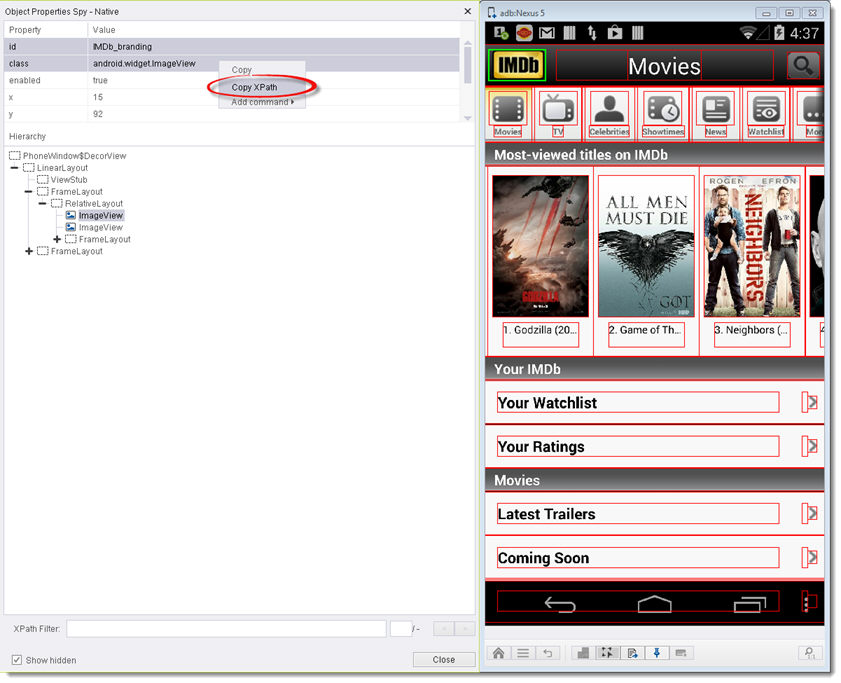
Use the Spy icon button in order to get the Native/Web properties of all the objects on the screen. The easiest way to create a simple XPath query is by marking the wanted properties of an element (one or multiple properties can be used), right clicking on them and then clicking on Copy XPath . This will copy to the clipboard a query that will look for elements that have the properties and values that are looked for. In this example, we will create a query that will look for elements that have both id property with home as the value and class property with android.widget.ImageView as the value.
-
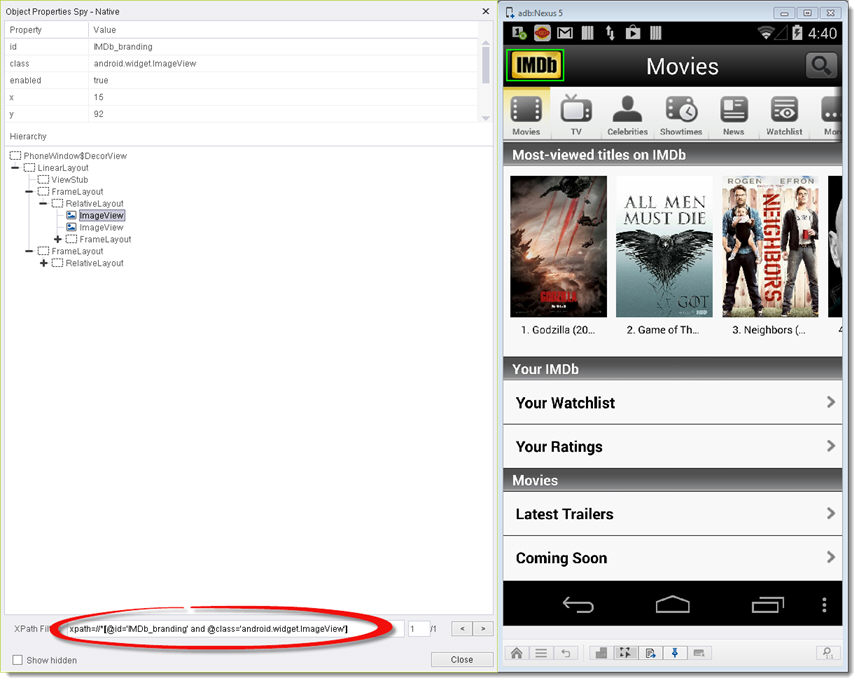
The xpath search box on the bottom of the tree window gives the ability to dynamically create and edit a query. The best way to check the elements a query identifies is by inserting the query into that search box. Only elements that meet the query will still be highlighted on the device's reflection once a query is inserted in the search box.
-
In the above example, the only element that is left highlighted is the one we extracted the properties from and wanted to identify. That means that the query gives unique identification of the desired element, and can be safely used in the automation scripts. But that is not always the case, as demonstrated below.
-
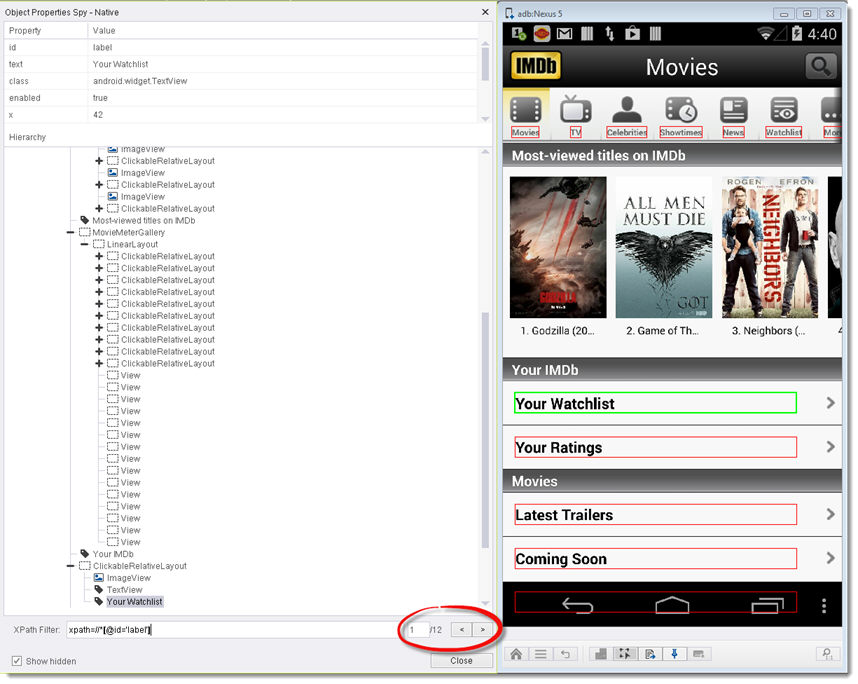
In the above query, we extracted just the id property of one of the elements (with value label ), and when checking the query in the search box, we can see that there are 11 other elements on the screen that meet the query and are identified by it. That means that using this query in the automation script can be dangerous, since any one of the elements can be identified when this query is called during an action command. That is why it is always recommended to try and create a query that will give unique identification of the element you are looking for.
-
Silk Mobile also has a feature that will automatically generate a unique XPath query for a specific element.
-
If a unique query still cannot be generated, it is possible to use the index parameter of the action commands to differentiate between the elements identified by the query.
Advanced XPath Options
-
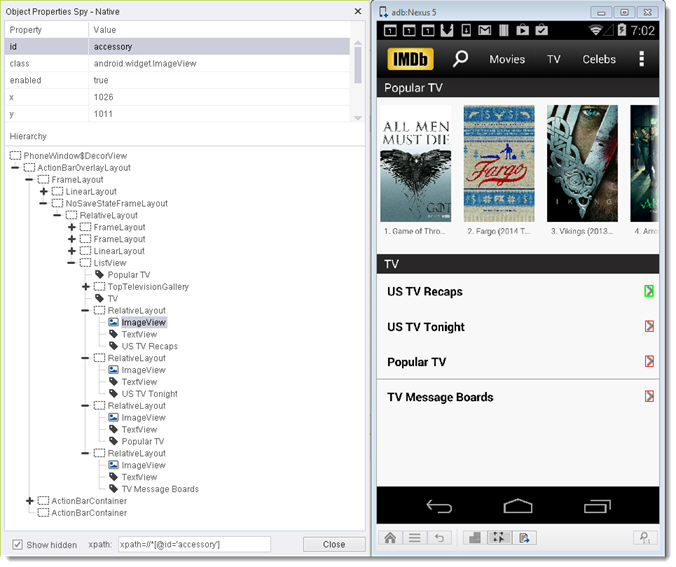
As mentioned above, the XPath language gives the ability to use properties of other elements in order to identify the element we are looking for. In the following example, we will use the text property of one of the labels in order to uniquely identify the arrow button to the right of it.
-
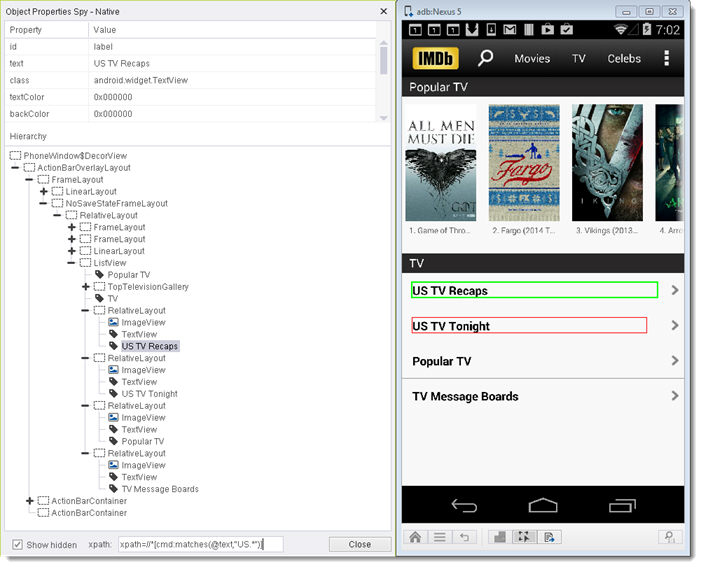
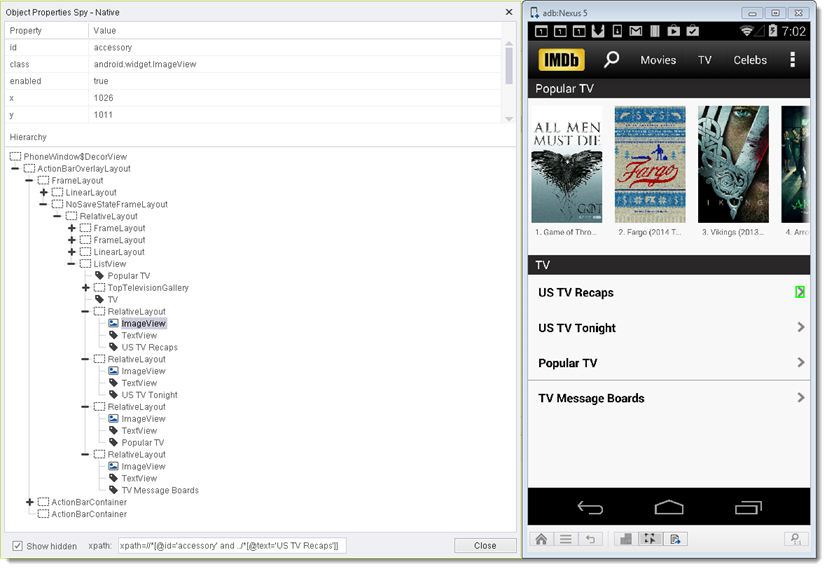
Using just the id property with accessory label is not a unique identifier, as all 4 arrow buttons meet this query. Notice that there are no other properties for the arrow button element itself that can help to separate it from the others, so we will use the text property of the label itself in order to get the unique identification. In order to do that, we will add to the query another part, that will also eliminate all elements that don't have a sibling in the tree with a text property and US TV Recaps value. The arrow button will now be uniquely identified.
-
XPath is a rich languages with lots of different features and capabilities in terms of creating and editing queries. Here are some commonly used options:
-
And, Or - Simple logic that can be integrated with the different properties used.
-
../* - Can be used to integrate the properties of a sibling of an element in the query. Each instance of ../ will go up the hierarchy another level, so use ../../* to integrate a property of the father of an element.
-
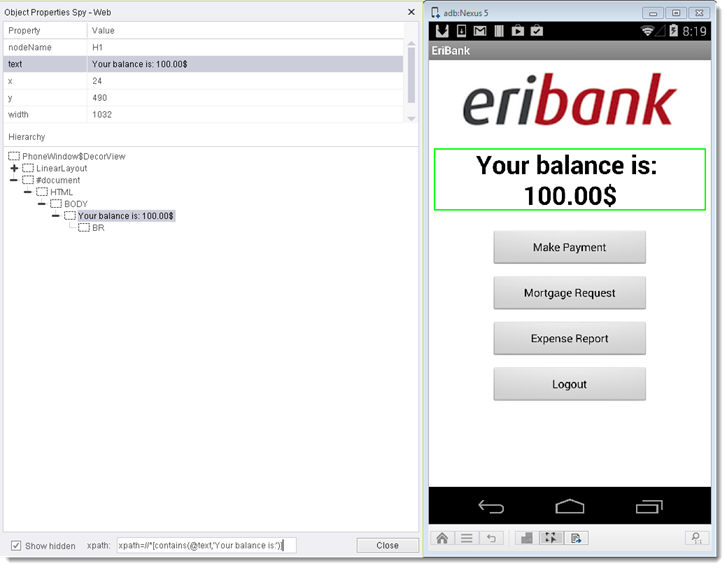
Contains - Use this syntax if you are looking for part of a value, very useful in cases of partial text. For example you can use the query xpath=//*[contains(@text,'Your balance is:')] in order to identify the element that holds the balance value, regardless of value itself which can change from test to test.
-
-
cmd:matches - Can be used in order to integrate regular expressions with the XPath query. For example, the query xpath=//*[cmd:matches(@text,"US.*")] will identify all elements with a text property that starts with US .